

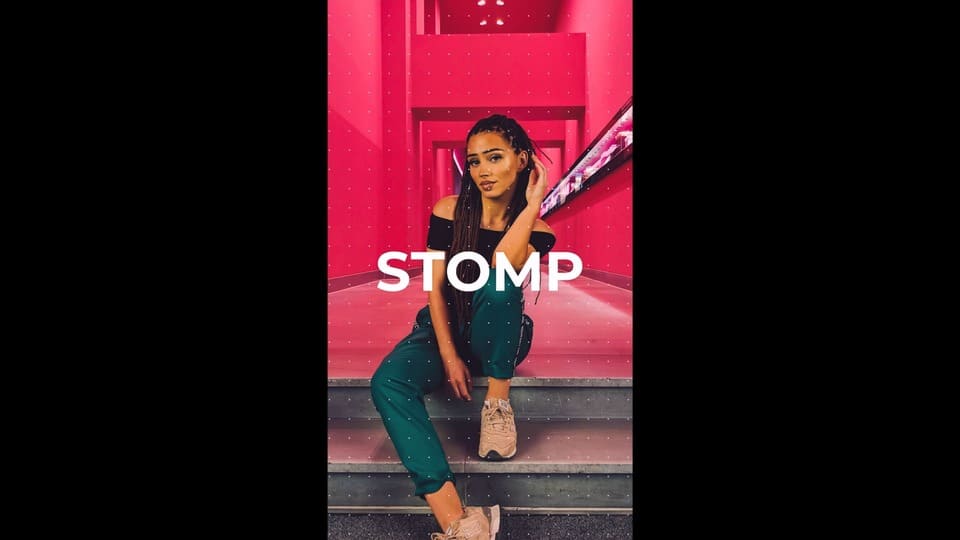
Instagram Stomp is a fast, dynamic, and completely free DaVinci Resolve Instagram reel template designed to create engaging vertical videos. This template features 13 media placeholders and 20 editable text layers, making it the perfect solution for Instagram reels, YouTube Shorts, or promotional stories. Compatible with DaVinci Resolve 18 and newer, it requires no third-party plugins. Simply drag and drop your photos or videos, adjust the text, and render a high-quality, action-packed social media video in minutes.
Technical Specifications & Features
This free template provides everything you need to build a professional-grade presentation quickly.
| Feature | Specification |
| Supported Versions | DaVinci Resolve 18, 19, 20, 21 (Free & Studio) |
| Resolution | 1080X1920 (HD) |
| Frame Rates | 24 FPS |
| Capacity | 13 Video or Image Placeholders and 20 Text Holders. |
| Customization | Fully customizable fonts, colors, and sizes using the Inspector Panel. |
| Audio/Music | Free commercial-use music included via musickits.net |
| Resources | Link for free fonts and a step-by-step PDF tutorial included. |
Included Free Soundtrack & Licensing
This DaVinci Resolve Instagram Story template includes the energetic royalty-free track Stomp Clap by Konstantin Mart, perfectly synced with dynamic stomp animations. You can freely use and monetize it in personal or commercial projects under the CC BY 3.0 license.
The only condition: You must provide attribution by leaving a link to the track in your video description.
Copy-paste attribution example:
Music: Stomp Clap – Konstantin Mart (https://musickits.net/product/stomp-clap-energetic/)
Licensed under CC-BY 3.0
Video Preview: Instagram Stomp Template in Action
Watch the video below to see the dynamic transitions and typography effects included in this template.

How to Install and Use DaVinci Resolve Instagram Templates?
Installing this template is a simple step-by-step process: import the .drp file, add your media to placeholders, and render.
Download & Prepare
Download the free davinci resolve Instagram reels template project archive. Extract the .zip archive to a dedicated folder on your drive to ensure all linked assets and files are ready for import.
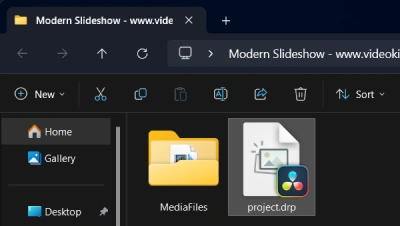
Launch DaVinci Resolve and Import the Template Project
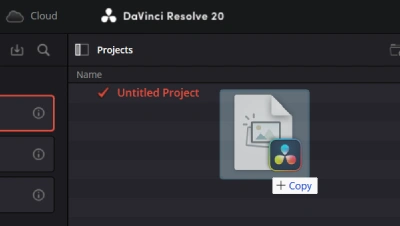
On startup, you will see the Project Manager (use the shortcut Shift + 1). Drag and drop the .drp file directly into the Project Manager window to restore the project with all media, timelines, and effects intact.
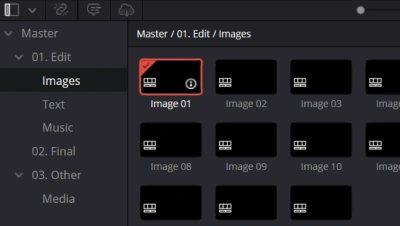
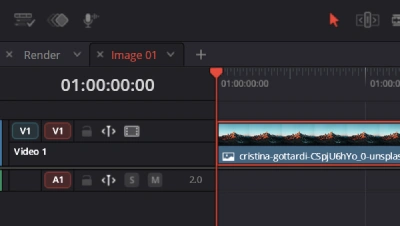
Edit Media
Navigate to the Media Pool and open the Images/Video timelines to add your own media files.
Add Media
Drag and drop your custom video footage or photos directly into the designated media placeholders.
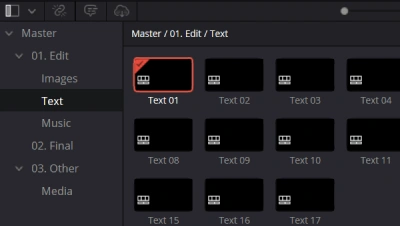
Edit Text
Locate and open the Text timelines in your project to begin modifying titles.
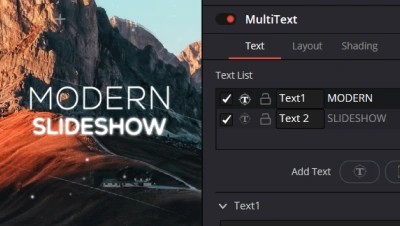
Customize Text
Select the title clip and use the Inspector Panel (top right) to change fonts, colors, and tracking to match your brand style.
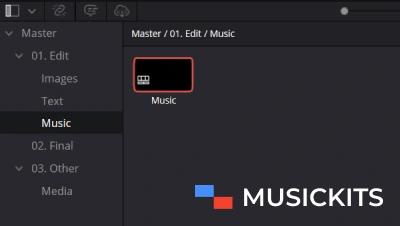
Edit Music
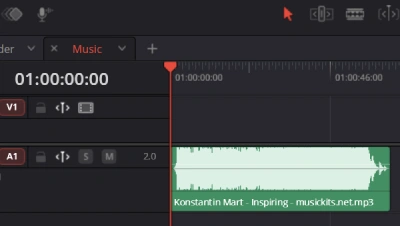
Add the free commercial-use music included with the project from musickits.net and open the Music timeline.
Add Music
Drag and drop the downloaded audio track directly into the timeline to sync with your video.
Final Render
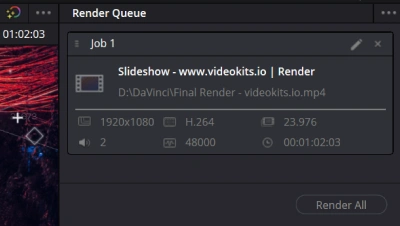
Once your edit is complete, switch to the Render timeline. Go to the Deliver Page, choose your preferred export settings, and hit “Render”.
Frequently Asked Questions (FAQ)
Are these DaVinci Resolve Instagram templates free for commercial use?
Yes, this Stomp template is free for both personal and commercial projects, making it ideal for brand promotions and social media marketing.
Do I need DaVinci Resolve Studio to use this?
This template is fully compatible with the free version of DaVinci Resolve. No paid Studio features or third-party plugins are required.
Are the images and videos from the preview included?
No, the media used in the preview video is for demonstration purposes only. You will need to insert your own photos or videos into the placeholders.
Sef
16.02.2022thanks!